Remote work has transformed how teams collaborate, but it's also introduced new security challenges. When employees work from home offices, coffee shops, and co-working spaces, traditional network security doesn't apply. This guide covers how to maintain secure file sharing practices with distributed teams.
Unique Security Challenges for Remote Teams
Untrusted Networks
Remote workers connect from home WiFi, public networks, and mobile data. Unlike corporate networks with firewalls and monitoring, these connections are inherently less secure.
Personal Devices
Many remote workers use personal laptops and phones. These devices may lack corporate security software, automatic updates, or proper configuration.
Physical Security
There's no locked office building protecting devices. Laptops can be stolen from cars, coffee shops, or homes.
Reduced Oversight
IT teams can't walk over to check if someone's following security protocols. Monitoring and enforcement are harder.
Shadow IT
When corporate tools are inconvenient, remote workers often use unauthorized personal tools that may be insecure.
Essential Security Measures
1. Require Two-Factor Authentication
Passwords alone aren't enough. Require 2FA on all file sharing accounts. Even if a password is compromised, attackers can't access files without the second factor.
2. Use Encrypted File Sharing Services
Choose services with strong encryption both in transit and at rest. GetShared encrypts all files with AES-256 and uses TLS for all transfers.
3. Implement Password-Protected Shares
When sharing files externally, always use password protection. Send passwords through a different channel than the share link.
4. Set Expiration Dates
Use link expiration so shared files don't remain accessible indefinitely. This limits exposure if a link is compromised.
5. VPN for Sensitive Access
For accessing company resources, require VPN connections that encrypt all traffic and provide a secure tunnel to corporate networks.
6. Device Encryption
Require full-disk encryption on all devices. If a laptop is stolen, the data remains protected.
7. Avoid Public WiFi for Sensitive Work
Public networks are inherently insecure. Use mobile hotspots or VPN when working from public locations. See our guide on security best practices.
Creating a Remote Security Policy
What to Include
- Approved file sharing services
- Required security features (2FA, passwords, expiration)
- Classification of sensitive data
- Incident reporting procedures
- Device security requirements
Training Requirements
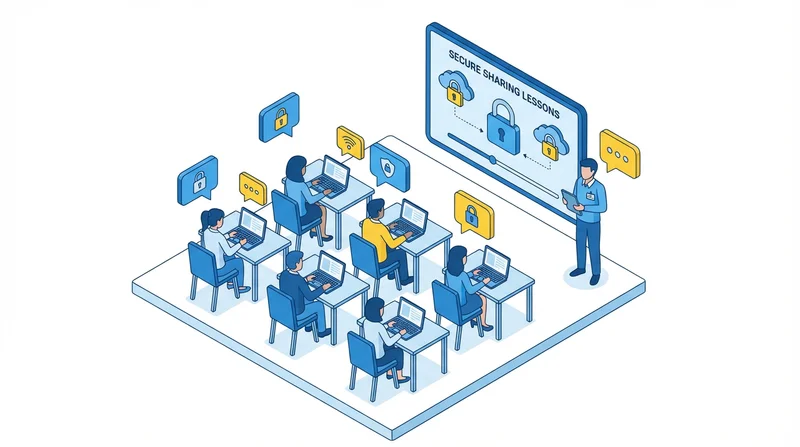
Regular security training is essential. See our guide on training employees on secure file sharing.
Monitoring and Visibility
Maintain visibility into file sharing activities:
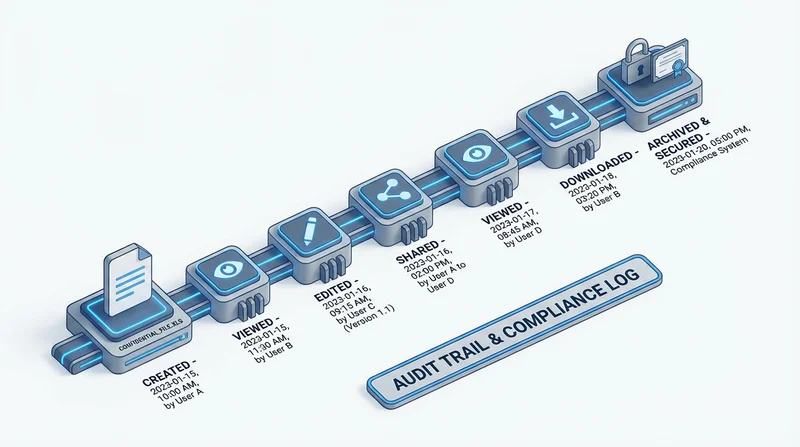
- Use download tracking to monitor access
- Enable audit logging for compliance
- Review sharing activity regularly
- Set up alerts for unusual patterns
Team File Organization
Good organization supports security:
- Clear folder structures (organization guide)
- Proper permission settings
- Regular access reviews
- Clean up inactive shares
Incident Response
Have a plan for security incidents:
- How to report suspected breaches
- Who to contact immediately
- Steps to contain exposure
- Documentation requirements
See our breach prevention guide for more.
GetShared for Remote Teams
GetShared provides security features designed for remote work:
- 2FA – Protect accounts from compromised passwords
- Encryption – Files protected in transit and at rest
- Password protection – Secure external shares
- Expiration – Time-limited access
- Tracking – Know who accessed what
- Team features – Centralized management
Conclusion
Remote work security requires a combination of technology, policy, and training:
- Use secure tools with proper encryption
- Enforce 2FA on all accounts
- Train employees regularly
- Monitor and audit activity
- Have incident response plans
For more on remote work, see our remote work best practices guide.