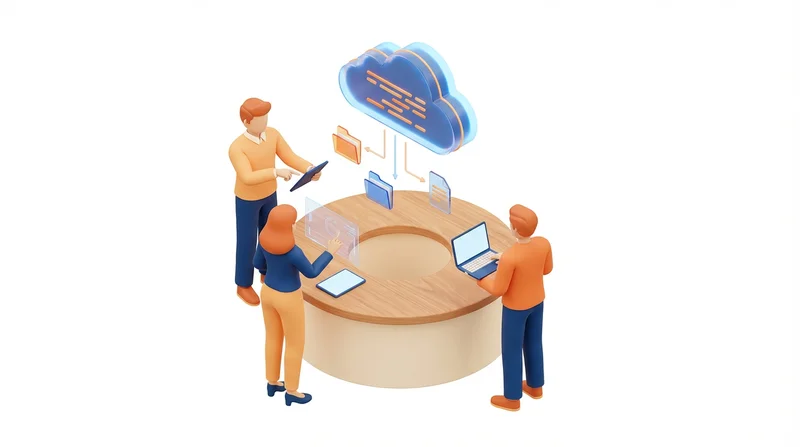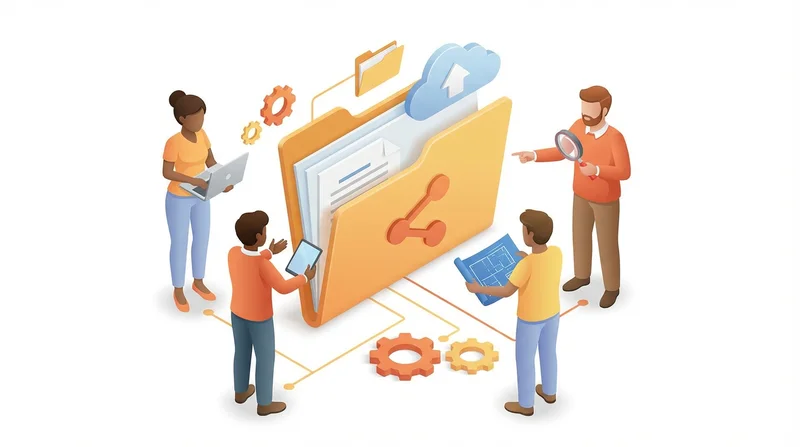
Effective teams share more than files – they share workflows. GetShared's team collaboration features transform basic file sharing into a powerful collaboration platform. This guide explores every team feature and how to maximize their potential.
Why Team File Sharing Differs from Personal
Personal file sharing is straightforward – you own everything, control everything. Teams introduce complexity:
- Multiple contributors – Several people editing and adding files
- Permission layers – Different access levels for different roles
- Audit requirements – Tracking who did what and when
- Storage management – Shared quotas and organization
- External sharing controls – Governing how team members share externally
Team Folder Structure
Shared Folders
Team folders are the foundation of collaboration:
- Accessible to designated team members
- Shared storage quota
- Consistent permission inheritance
- Activity tracking across all contents
Recommended Structure
Team Storage/
├── Active Projects/
│   ├── [Client/Project folders]
├── Resources/
│   ├── Templates/
│   ├── Brand Assets/
│   └── Reference Materials/
├── Archive/
└── Team Management/
Permission Levels
Available Permissions
| Level | View | Download | Upload | Edit | Share | Admin |
|---|---|---|---|---|---|---|
| Viewer | ✓ | ✓ | ||||
| Contributor | ✓ | ✓ | ✓ | |||
| Editor | ✓ | ✓ | ✓ | ✓ | ||
| Manager | ✓ | ✓ | ✓ | ✓ | ✓ | |
| Admin | ✓ | ✓ | ✓ | ✓ | ✓ | ✓ |
Setting Permissions
- Navigate to the folder
- Click "Share" or "Permissions"
- Add team members by email
- Select permission level
- Save changes
Permissions cascade down – folder permissions apply to all contents unless specifically overridden.
Activity Tracking and Audit Logs
Every team action is logged:
- File uploads and downloads
- File modifications (with file versioning)
- Permission changes
- External share creation
- User access events
Viewing Activity
- Go to Team Settings → Activity
- Filter by date, user, or action type
- Export for compliance reporting
This audit capability supports GDPR compliance and HIPAA compliance compliance requirements.
External Sharing Controls
Team-Wide Policies
Admins can control how team members share externally:
- Require password protection – All external links must be password-protected
- Enforce expiration – Maximum link lifetime
- Restrict sharing – Only managers+ can share externally
- Approve sensitive shares – Workflow for classified data
Branded Sharing
Team accounts include custom branding:
- Custom logo on download pages
- Brand colors
- Custom messaging
- Professional presentation for clients
User Management
Inviting Team Members
- Go to Team Settings → Members
- Click "Invite"
- Enter email addresses
- Select default permission level
- Send invitations
Managing Access
- View all team members
- See storage usage per user
- Modify permissions
- Suspend or remove members
- Transfer ownership of files
Offboarding
When team members leave:
- Transfer file ownership
- Revoke external shares they created
- Remove from team
- Review access logs for compliance
Storage Management
Shared Storage Pool
Team storage is shared across all members:
- Total allocation based on plan
- No per-user limits (use team total)
- Admin visibility into usage
- Alerts when approaching limits
Managing Space
- Review large files
- Archive completed projects
- Remove duplicate files
- Set up retention policies
Security Features for Teams
Mandatory Security
Admins can require:
- two-factor authentication for all members
- Password complexity requirements
- Session timeout policies
- Approved device lists
SSO Integration
Enterprise teams can integrate Single Sign-On:
- SAML 2.0 support
- Automatic provisioning/deprovisioning
- Centralized identity management
See our enterprise guide for full enterprise features.
Integration with Workflows
API Access
Automate team workflows with our API integration:
- Automated file organization
- Integration with project management
- Custom sharing workflows
- Reporting and analytics
Notifications
Stay informed with:
- File change notifications
- Share activity alerts
- Weekly digest options
- Slack/Teams integration
Team Pricing
GetShared Team includes:
- Shared storage pool
- All collaboration features
- Admin controls
- Audit logging
- Priority support
See pricing plans for current team rates.
Getting Started with Teams
- sign up for GetShared or upgrade existing account
- Create your team
- Invite team members
- Set up folder structure
- Configure security policies
- Start collaborating!
Need help planning your team setup? Our support team can assist with migration and configuration.