Two-factor authentication (2FA) is one of the most effective ways to protect your online accounts from unauthorized access. Even if someone discovers your password, 2FA provides a crucial second line of defense. This guide walks you through setting up 2FA on GetShared and best practices for maximum security.
Why Two-Factor Authentication Matters
Passwords alone are no longer sufficient protection. Consider these statistics:
- 81% of data breaches involve weak or stolen passwords
- The average person reuses the same password across 14 different accounts
- Over 15 billion credentials are available on the dark web
Two-factor authentication dramatically reduces these risks. Even with your password, an attacker cannot access your account without the second factor – typically your phone or a hardware security key.
How 2FA Works
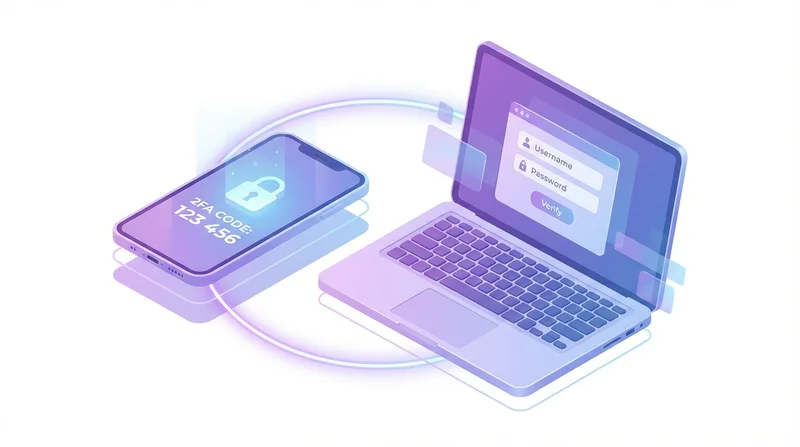
Two-factor authentication requires two different types of credentials:
- Something you know – Your password
- Something you have – Your phone, authenticator app, or hardware key
Some systems add a third factor: something you are (biometrics like fingerprint or face recognition).
Setting Up 2FA on GetShared
Step 1: Access Security Settings
- Log in to your GetShared account
- Click your profile icon in the top-right corner
- Select "Settings" from the dropdown
- Navigate to the "Security" tab
Step 2: Choose Your 2FA Method
GetShared supports three 2FA methods:
Option A: Authenticator App (Recommended)
Authenticator apps generate time-based codes that change every 30 seconds. Supported apps include:
- Google Authenticator (iOS/Android)
- Authy (iOS/Android/Desktop)
- Microsoft Authenticator (iOS/Android)
- 1Password (built-in authenticator)
To set up:
- Click "Enable Authenticator App"
- Scan the QR code with your authenticator app
- Enter the 6-digit code shown in your app
- Click "Verify and Enable"
Option B: SMS Verification
SMS sends codes via text message. While convenient, this method is less secure than authenticator apps due to SIM swapping risks.
- Click "Enable SMS Verification"
- Enter your phone number
- Enter the code sent via SMS
- Click "Verify and Enable"
Option C: Hardware Security Key
Hardware keys like YubiKey provide the strongest protection. They're immune to phishing and can't be intercepted remotely.
- Click "Enable Security Key"
- Insert your security key when prompted
- Touch the key to confirm
- Name your key for identification
Step 3: Save Backup Codes
After enabling 2FA, GetShared generates backup codes. These are essential if you lose access to your 2FA device:
- Download or print your backup codes
- Store them securely (not on your computer)
- Each code can only be used once
- Generate new codes if running low
Best Practices for 2FA Security
Use an Authenticator App Over SMS
SMS-based 2FA is vulnerable to:
- SIM swapping – Attackers convince carriers to transfer your number
- SS7 vulnerabilities – Technical flaws in phone networks
- Phone theft – Physical access to your device
Authenticator apps avoid these issues because codes are generated locally on your device.
Protect Your Backup Codes
Backup codes are as powerful as your password + 2FA combined. Treat them accordingly:
- Store in a physical safe or safety deposit box
- Use a password manager's secure notes feature
- Never store in cloud-synced notes or email
- Consider splitting codes between multiple locations
Enable 2FA Everywhere
Your GetShared account is one piece of your security ecosystem. Enable 2FA on:
- Email accounts (crucial – email often used for password resets)
- Banking and financial services
- Social media accounts
- Other cloud storage services
Consider a Hardware Security Key
For maximum security, especially if you store sensitive files, a hardware security key provides benefits:
- Phishing-proof – Keys verify the website, not just the user
- No battery needed – Works indefinitely
- Impossible to intercept – Requires physical presence
We recommend YubiKey 5 series for broad compatibility.
What to Do If You Lose Your 2FA Device
If You Have Backup Codes
- Log in with your password
- When prompted for 2FA, click "Use backup code"
- Enter one of your backup codes
- Immediately set up a new 2FA method
- Generate new backup codes
If You Don't Have Backup Codes
- Contact GetShared support
- Verify your identity through alternative means
- Support will guide you through account recovery
This process takes time for security reasons – another incentive to save those backup codes!
2FA and Shared Files
Two-factor authentication protects your account, but what about files you share? GetShared offers additional layers:
- Password protection – Require a password to download (password-protected sharing)
- Link expiration – Automatically disable links after a set time (link expiration)
- Download limits – Restrict the number of times files can be downloaded
- End-to-end encryption – Protect file contents (end-to-end encryption)
2FA for Teams
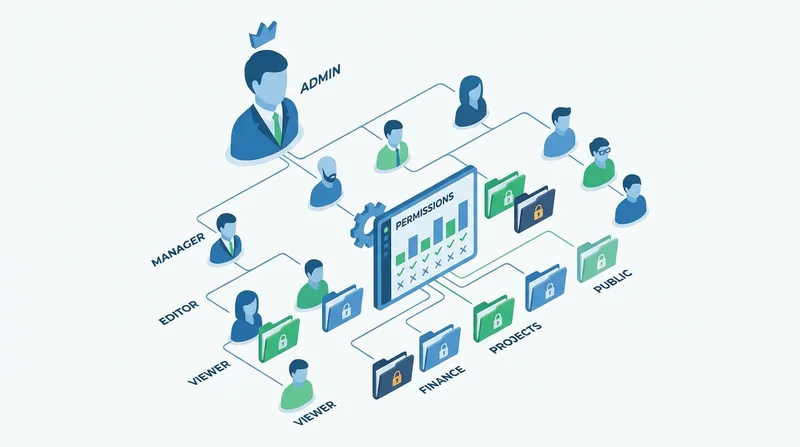
GetShared's team collaboration features allow administrators to:
- Require 2FA for all team members
- Enforce specific 2FA methods (e.g., hardware keys only)
- View 2FA status across the team
- Manage 2FA recovery for team members
Common 2FA Issues and Solutions
Codes Not Working
If your authenticator codes aren't being accepted:
- Check time sync – Ensure your phone's time is automatic/network-synced
- Wait for next code – Codes are only valid for 30 seconds
- Verify correct account – Make sure you're using the GetShared entry, not another service
SMS Codes Delayed
SMS delivery can be slow due to carrier issues. If waiting more than 2 minutes:
- Click "Resend code"
- Check you entered the correct phone number
- Consider switching to an authenticator app
Conclusion
Two-factor authentication is a simple step that dramatically improves your security. Combined with GetShared's end-to-end encryption and password-protected sharing, your files benefit from multiple layers of protection.
Don't have a GetShared account yet? sign up for GetShared today – setting up 2FA during registration takes just one minute and could prevent a devastating account compromise.
2FA Setup Checklist
- ☐ Choose authenticator app or hardware key (preferred over SMS)
- ☐ Complete setup in GetShared security settings
- ☐ Download and securely store backup codes
- ☐ Enable 2FA on your email account
- ☐ Consider hardware security key for additional protection