Everyone has experienced the moment of panic: you've overwritten important work or made changes you can't undo. File versioning eliminates this fear by automatically preserving every version of your files. This guide explains how versioning works and how to use it effectively.
What Is File Versioning?
File versioning automatically saves copies of your files each time they're modified. Instead of having only the current version, you maintain a history that lets you:
- View previous versions
- Compare changes over time
- Restore any previous version
- See who made changes (in team environments)
How GetShared Versioning Works
Automatic Version Creation
GetShared creates a new version whenever you:
- Upload a file with the same name
- Edit and save changes (synced files)
- Upload via API with same filename
No manual action required – protection is automatic.
Version Retention
| Plan | Retention Period | Maximum Versions |
|---|---|---|
| Free | 30 days | 10 per file |
| Pro | 180 days | 50 per file |
| Team | 365 days | 100 per file |
| Enterprise | Custom | Unlimited |
Accessing File Versions
Viewing Version History
- Navigate to the file
- Click the three-dot menu (⋮)
- Select "Version History"
- View list of all versions with timestamps
Comparing Versions
For text-based files (documents, code), GetShared shows:
- Side-by-side comparison
- Highlighted changes
- Addition/deletion markers
Downloading Previous Versions
- Open version history
- Select desired version
- Click "Download"
- Version downloads with timestamp in filename
Restoring Previous Versions
Restore as Current
- Open version history
- Select version to restore
- Click "Restore This Version"
- Current file is replaced with selected version
- Previous "current" becomes a new version (nothing lost)
Restore as Copy
To keep both versions:
- Download the previous version
- Upload with different filename
- Both versions now accessible
Use Cases for Versioning
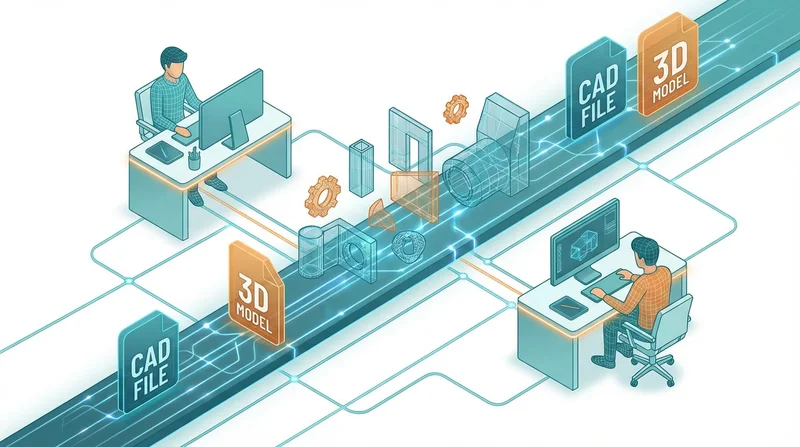
Document Collaboration
Multiple editors working on documents:
- Track each person's changes
- Restore if edits need reverting
- Compare drafts over time
- No "final_v2_FINAL_really-final.doc" naming needed
Combined with team collaboration features, versioning makes team document management seamless.
Design Projects
Creative work often requires iteration:
- Save design explorations automatically
- Show clients evolution
- Return to abandoned concepts
- Protect against "can we go back?" requests
Code and Configuration
For developers:
- Track configuration changes
- Restore working configs after breaking changes
- Audit who changed what
Compliance Documentation
For GDPR compliance and HIPAA compliance compliance:
- Demonstrate document history
- Prove when changes were made
- Support audit requirements
Versioning vs. Backup
Versioning and backup serve different purposes:
| Feature | Versioning | Backup |
|---|---|---|
| Purpose | Track changes to files | Protect against data loss |
| Granularity | Per-file | Entire system/folder |
| Automation | On every change | Scheduled intervals |
| Storage | Incremental (efficient) | Often full copies |
Use versioning for work-in-progress protection; use backup strategies for disaster recovery.
Storage Impact
Versions count against your storage quota, but GetShared uses smart deduplication:
- Only changed portions are stored
- Text files with small changes use minimal space
- Large binary files (videos) take more space per version
Managing Version Storage
If storage is limited:
- Delete unnecessary old versions manually
- Reduce version retention settings
- Archive completed projects (versions preserved)
Versioning for Shared Files
When files are shared:
- Recipients see current version only
- Version history remains private to owner
- Restoring creates new "current" for everyone
- Team members with edit access can view history
Best Practices
- Don't rely solely on versioning – Maintain separate backup strategies
- Name files meaningfully – Versioning tracks same file, not variations
- Review versions periodically – Prune unnecessary history
- Communicate with team – Note significant changes in messages
- Test restoration – Know how to restore before you need to
Conclusion
File versioning is insurance against mistakes, changes of direction, and collaboration complexity. GetShared includes versioning on all accounts – free users get 30 days of protection, paid plans get extended history. Combined with end-to-end encryption and team collaboration features, your files are protected, secure, and accessible.
sign up for GetShared and never lose work again.