GetShared Team transforms file sharing from individual task to collaborative workflow. This comprehensive guide covers every Team plan feature and how to maximize value for your organization.
What's Included in Team Plan
Storage and Sharing
- Shared storage pool – Team storage shared across all members
- Unlimited file sizes – No per-file limits
- All sharing features – password-protected sharing, link expiration, download tracking
- custom branding – Custom logos and colors
- Extended versioning – 365-day file history
Team Management
- Centralized admin – Manage all users from one dashboard
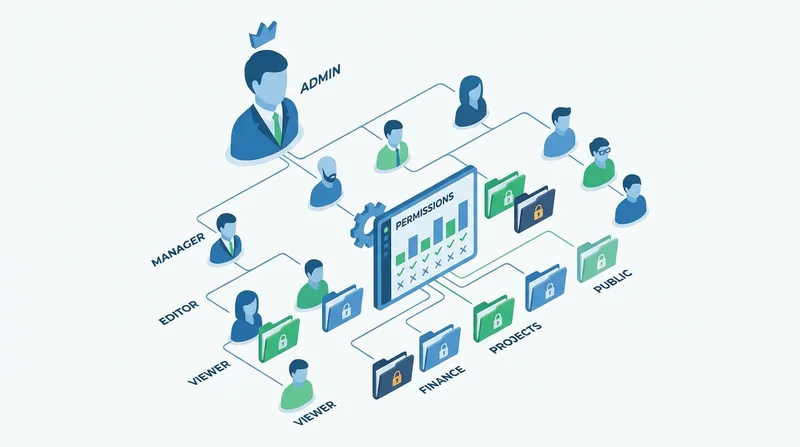
- Permission levels – Viewer, Contributor, Editor, Manager, Admin
- Activity logs – Track all file operations
- Usage analytics – Storage and sharing metrics
Security
- end-to-end encryption – All files protected
- Mandatory two-factor authentication – Enforce for all team members
- External sharing policies – Control how team shares outside
- Audit trail – Compliance-ready logging
Setting Up Your Team
Step 1: Create Team Account
- sign up for GetShared or upgrade existing account
- Select Team plan
- Name your team
- Complete billing
Step 2: Configure Settings
- Upload team logo (custom branding)
- Set brand colors
- Configure security policies
- Set default sharing permissions
Step 3: Invite Team Members
- Go to Team → Members
- Click "Invite"
- Enter email addresses
- Select default role
- Send invitations
Step 4: Create Folder Structure
Organize team storage:
Team Storage/
├── Active Projects/
├── Shared Resources/
├── Client Files/
└── Archive/
Understanding Team Roles
| Capability | Viewer | Contributor | Editor | Manager | Admin |
|---|---|---|---|---|---|
| View files | ✓ | ✓ | ✓ | ✓ | ✓ |
| Download | ✓ | ✓ | ✓ | ✓ | ✓ |
| Upload | ✓ | ✓ | ✓ | ✓ | |
| Edit/Delete | ✓ | ✓ | ✓ | ||
| Share externally | ✓ | ✓ | |||
| Manage team | ✓ |
Folder Permissions
Permissions can be set at folder level:
- Navigate to folder
- Click "Share" or "Permissions"
- Add team members or groups
- Select permission level
- Save
Permissions cascade to subfolders unless specifically overridden.
External Sharing Policies
Setting Team-Wide Policies
Admins can enforce:
- Require passwords – All external shares must be protected
- Maximum expiration – Links can't exceed X days
- Who can share – Limit external sharing to Managers+
- Domain restrictions – Only share with approved domains
Why This Matters
Policies prevent:
- Accidental data exposure
- Non-compliant sharing
- Untracked external access
Activity Monitoring
Available Logs
- File uploads and downloads
- Share link creation
- Permission changes
- Login events
- Setting modifications
Using Activity Data
- Compliance – GDPR compliance and HIPAA compliance audit requirements
- Security – Detect unusual activity
- Management – Understand usage patterns
Storage Management
Shared Pool Model
Team storage is shared – no per-user limits. Benefits:
- Flexibility as needs change
- No wasted allocations
- Simple capacity planning
Monitoring Usage
- Go to Team → Storage
- View total and used capacity
- See breakdown by user
- Identify large files and folders
Integrations
API Access
Team plans include full API integration access:
- Automate file workflows
- Integration with internal systems
- Custom applications
Third-Party Apps
- Slack integration for notifications
- Webhook support for automation
- SSO providers (Enterprise)
Best Practices for Teams
- Document your structure – Clear folder naming and organization
- Define ownership – Each folder has a responsible person
- Regular permission audits – Review who has access quarterly
- Offboarding process – Transfer files when members leave
- Training – Ensure all members know security features
Pricing
Team plans are priced per user with shared storage. See pricing plans for current rates.
Volume discounts available for larger teams. Contact sales for quotes.
Getting Started
Ready to transform your team's file sharing? sign up for GetShared for Team plan or contact sales for a demo.