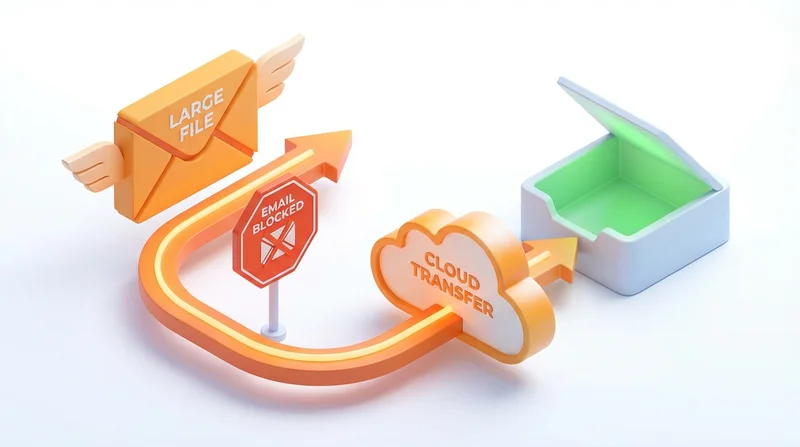
That frustrating "attachment too large" error has stopped countless emails. With most providers limiting attachments to 25MB, sharing anything substantial via email seems impossible. Here's how to bypass these limits professionally.
Why Email Attachments Are Limited
Email providers restrict attachment sizes because:
- Server storage – Attachments stay on servers indefinitely
- Bandwidth – Large files clog mail systems
- Abuse prevention – Limits spam with large payloads
- Delivery reliability – Large emails often fail
Common Email Limits
| Provider | Max Attachment | Total Message |
|---|---|---|
| Gmail | 25MB | 25MB |
| Outlook.com | 20MB | 20MB |
| Yahoo Mail | 25MB | 25MB |
| iCloud Mail | 20MB | 20MB |
| Corporate (typical) | 10-25MB | 10-25MB |
A single high-resolution photo (5-10MB) or short video easily hits these limits.
The Better Approach: Cloud Links
Instead of attaching files, upload them and share a link:
How It Works
- Upload file to cloud storage (GetShared)
- Generate a share link
- Include link in your email
- Recipient downloads from cloud
Benefits
- No size limits – Share files of any size
- Faster email – Emails with links send instantly
- Version control – Update file without resending
- Tracking – Know when files are downloaded
- Security options – Password protection, expiration
Step-by-Step: Replace Attachments with Links
Step 1: Upload Your File
- sign up for GetShared (or log in)
- Drag and drop your file
- Wait for upload to complete
Step 2: Create Share Link
- Select the file
- Click "Share"
- Configure options:
- password-protected sharing for sensitive files
- link expiration for time-limited access
- Copy the link
Step 3: Compose Email
Instead of attaching, include the link:
Hi [Name],

Please find the requested files here: [link]

Let me know if you have any issues downloading.

Best regards
Step 4: Track Access
Use download tracking to see when recipients download.
Professional Tips
Make Links Obvious
Don't bury links – make them clear:
- Put link on its own line
- Label what recipients will find
- Mention file names/contents
Consider Your Recipient
- Not everyone recognizes cloud links
- Brief explanation helps: "Click to download"
- Note file size if relevant
For Repeated Use
If you regularly share the same type of files:
- Create template emails with instructions
- Use custom branding for recognition
- Consider dedicated sharing folders
Specific Scenarios
Sending to Clients
- Use custom branding for professional appearance
- sharing without account – Clients download without signup
- Password protect confidential materials
Sending to Multiple Recipients
- Single link works for all recipients
- No separate uploads needed
- Track who downloads
Large Video Files
See video sharing guide for video-specific guidance.
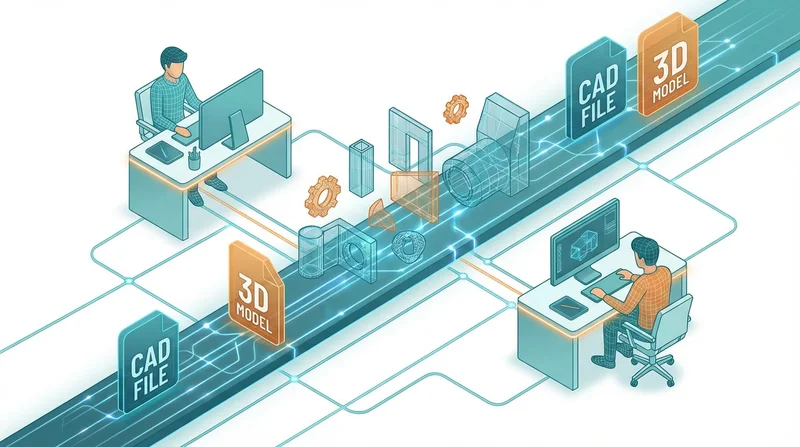
CAD and Engineering Files
See CAD file sharing for technical file sharing.
Provider-Specific Solutions
Gmail
Gmail auto-prompts Google Drive for large attachments. However, GetShared offers advantages:
- end-to-end encryption vs. Google's server-side
- More sharing controls
- Recipients don't need Google accounts
Outlook
OneDrive integration available, but:
- Recipients may need Microsoft accounts
- Limited security on free tier
- GetShared provides more flexibility
When Attachments Are OK
Small, non-sensitive files may be fine as attachments:
- Documents under 5MB
- Not confidential
- No need for tracking
- Recipient prefers attachment
Conclusion
Email attachment limits are easily bypassed with cloud storage links. GetShared offers sending large files capability with end-to-end encryption and download tracking – all on the free tier. Your emails will be faster, your files more secure, and you'll know when recipients access them.
sign up for GetShared and never see "attachment too large" again.