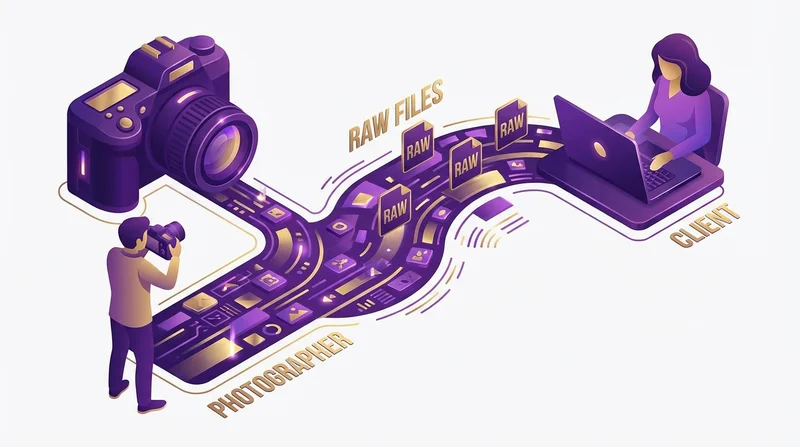
As a photographer, sharing RAW files with clients is increasingly common. Whether for wedding albums, commercial shoots, or portrait sessions, clients often request the original unprocessed files. This guide covers everything you need to know about delivering RAW files professionally and efficiently.
Understanding RAW File Sizes
RAW files are significantly larger than JPEGs because they contain all the data captured by the sensor. Here's what you're typically working with:
| Camera Type | Resolution | RAW File Size | 1000 Photos |
|---|---|---|---|
| Entry-level DSLR/Mirrorless | 24 MP | 25-30 MB | 25-30 GB |
| Full-frame Mirrorless | 45-50 MP | 50-60 MB | 50-60 GB |
| Medium Format | 100+ MP | 100-150 MB | 100-150 GB |
| High-res Mode | 150+ MP | 200+ MB | 200+ GB |
A typical wedding shoot with 3,000 photos in RAW format could easily exceed 150GB. Traditional email and most consumer file sharing services simply can't handle this.
When to Share RAW Files
Common Scenarios for RAW Delivery
- Commercial clients – Companies often require RAW files for their archives and future editing flexibility
- Editorial work – Publications may request RAW for their post-production workflows
- Wedding packages – Some wedding packages include RAW file delivery as a premium option
- Client requests – Some clients specifically request RAW files in contracts
When NOT to Share RAW Files
- Without contractual agreement – RAW files represent your unfinished work
- Without additional compensation – RAW delivery should be priced accordingly
- When client lacks software – Clients need Lightroom, Capture One, etc. to use RAW files
Preparing RAW Files for Delivery
1. Cull Your Selection
Don't deliver every frame. Include only the best shots, removing:
- Out-of-focus images
- Duplicate exposures (unless client requests all)
- Test shots and accidental captures
- Severely over/underexposed images
2. Organize Logically
Structure your delivery folder:
Johnson_Wedding_RAW/
├── 01_Getting_Ready/
├── 02_Ceremony/
├── 03_Portraits/
├── 04_Reception/
└── README.txt
3. Include a README
Add a text file explaining:
- Camera and lens information
- Color profile used (if applicable)
- Recommended software for opening files
- Your contact information for questions
4. Consider Including Sidecar Files
If you've made basic adjustments in Lightroom or Capture One, include the sidecar files (.xmp for Adobe) so clients can see your starting points.
Best Methods for Sharing RAW Files
Method 1: Cloud File Sharing (Recommended)
Using a dedicated file sharing service like GetShared is the most professional and reliable method.
Advantages:
- Handles any file size – 50GB, 100GB, or more
- Client doesn't need special software
- Track when files are downloaded
- Password protection for security
- Professional branded delivery page
How to do it:
- Organize your RAW files in a folder
- Upload the folder to GetShared
- Generate a share link
- Add password protection if needed
- Send the link to your client
With custom branding, your delivery page displays your logo and colors, maintaining professional presentation even at the technical file delivery stage.
Method 2: Physical Delivery
For extremely large deliveries (500GB+) or clients who prefer physical media:
- USB drive – Reliable and fast for local clients
- Portable SSD – Faster and more durable than USB drives
- SD cards – If client has appropriate readers
Physical delivery is slower and requires more effort but may be preferred for archival purposes.
Method 3: Hybrid Approach
For the best of both worlds:
- Upload to cloud for immediate access
- Mail physical backup for client's archives
Security Considerations
RAW files represent significant creative and business value. Protect them appropriately:
Password Protection
Always use password-protected links for RAW file delivery. Share the password via a different channel (phone call or separate email).
Link Expiration
Set links to expire after a reasonable period (30-90 days). This ensures files aren't accessible indefinitely.
Download Limits
Consider setting download limits so the link becomes inactive after a certain number of downloads, preventing unauthorized sharing.
Terms of Delivery
Include clear terms about:
- Who can access the files
- How files may be used
- Whether files may be redistributed
- Attribution requirements
File Format Considerations
RAW Formats by Brand
- Canon – .CR2, .CR3
- Nikon – .NEF, .NRW
- Sony – .ARW
- Fujifilm – .RAF
- Adobe – .DNG (universal)
Should You Convert to DNG?
Converting to Adobe DNG offers some advantages:
- Universal format (not brand-specific)
- Slightly smaller file sizes
- Sidecar data embedded in file
However, some information may be lost in conversion. For archival purposes, original RAW is often preferred.
Including JPEGs
Consider including JPEG versions alongside RAW files. This allows clients to:
- Preview images without RAW software
- Use images immediately for quick needs
- Understand your editing vision
Client Communication
Before the Shoot
Clarify RAW delivery in your contract:
- Is RAW included in the package?
- What's the additional cost if not included?
- How will files be delivered?
- When will files be delivered?
At Delivery
Send a clear delivery email:
- Link to download files
- Password (if applicable, send separately)
- File count and total size
- How long the link will be active
- Software recommendations
- Usage rights reminder
After Delivery
Use download tracking to verify receipt. Follow up if files haven't been downloaded after a week to ensure the client received your message.
Pricing RAW File Delivery
RAW files have value beyond standard deliverables. Consider pricing models:
- Included in premium packages – Use RAW delivery as an upsell differentiator
- Per-file pricing – Charge per RAW file delivered
- Flat fee – Add a set amount for RAW file access
- Time-delayed – Offer RAW files after a certain period at reduced cost
RAW files represent your unfinished work and unlimited editing flexibility for the client. Price accordingly.
Workflow Integration
With Lightroom
- Create a Collection for client delivery
- Add selected images
- Export RAW files to delivery folder (or use original files)
- Include .xmp sidecar files if desired
- Upload to GetShared
With Capture One
- Create a Session or Album for delivery
- Export selected RAW files
- Include adjustments as sidecar if needed
- Upload to GetShared
Common Issues and Solutions
"Client says they can't open RAW files"
Provide software recommendations. Free options include:
- Adobe Camera Raw (comes with Photoshop)
- RawTherapee (free, open source)
- Darktable (free, open source)
"Upload is taking too long"
Large RAW deliveries can take hours to upload. Tips:
- Upload overnight
- Use wired connection, not WiFi
- Close other bandwidth-heavy applications
- Consider uploading in batches
"Client wants files immediately"
For urgent needs, consider:
- Delivering a smaller selection first
- Sending JPEGs immediately, RAW to follow
- Using faster upload connections (office, coworking space)
Professional Presentation
Even at the technical file delivery stage, presentation matters:
- Use branded share pages – GetShared's custom branding keeps your brand present
- Professional naming – "Johnson_Wedding_RAW" not "final_export_v2_FINAL"
- Include a cover image – Set a hero image on your share page
- Write a personal note – Include a message with the delivery
For more on professional file sharing presentation, see our guide on file sharing for creative professionals.
Conclusion
Sharing RAW files with clients is increasingly part of modern photography business. Do it professionally by:
- Using a reliable file sharing service that handles large files
- Organizing files logically with clear naming
- Protecting files with appropriate security measures
- Communicating clearly about delivery and usage
- Pricing RAW delivery appropriately
GetShared is built for exactly this use case – large creative files shared professionally and securely. Try it free for your next client delivery.