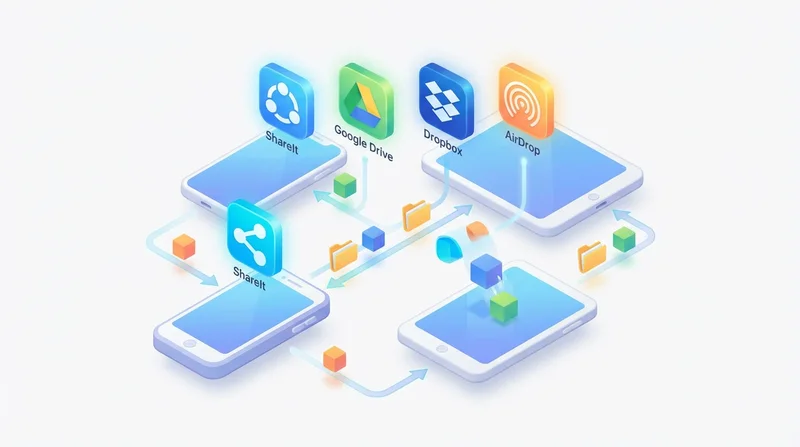
Mobile file sharing keeps you productive anywhere – upload from your phone, share on the go, access files remotely. Understanding mobile capabilities helps you work effectively beyond the desktop.
Mobile File Sharing Capabilities
What You Can Do
- Upload photos and videos directly from phone
- Share files with clients on the go
- Access your cloud files anywhere
- Download shared files to mobile
- Manage shares and permissions
Common Mobile Scenarios
- Share photos from a shoot immediately
- Send documents while traveling
- Access reference files at client sites
- Review and approve shared content
GetShared Mobile Experience
Browser-Based Access
GetShared works in any mobile browser:
- No app installation required
- Same features as desktop
- Works on iOS and Android
- Responsive design for all screens
Mobile Upload
- Open GetShared in mobile browser
- Tap upload
- Select photos/files from device
- Upload completes in background
Sharing from Mobile
- Select files to share
- Set password and expiration
- Copy link or share directly
- Send via messaging, email, etc.
Mobile Tips
Use WiFi for Large Files
Video and large files upload faster on WiFi and save data.
Organize on Desktop
Detailed organization is easier on desktop. Use mobile for quick uploads and access.
Offline Access
Download files you need before going offline. Cloud access requires internet.
Mobile Security
- Use 2FA on your account
- Avoid public WiFi for sensitive files
- Log out on shared devices
See mobile sharing guide for more.
Access GetShared from any mobile browser.