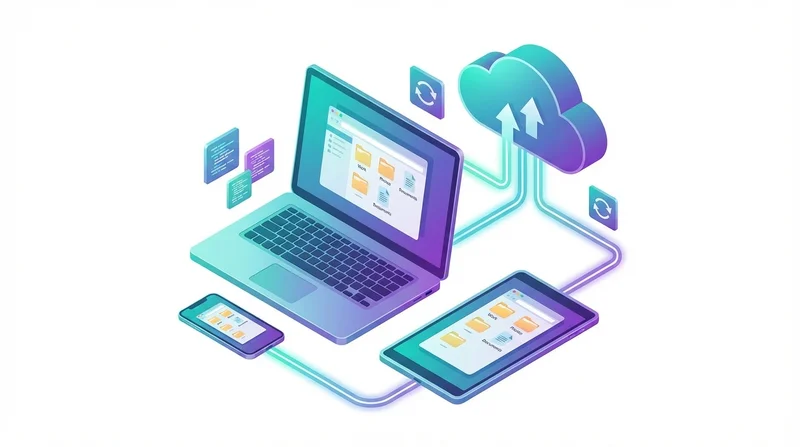
In today's multi-device world, you might start work on your desktop, continue on your laptop, and review on your phone. Having seamless access to files across all devices is essential for productivity. This guide covers the best methods to achieve true multi-device file access.
Understanding Your Options
There are several approaches to multi-device file access:
- Cloud sync – Files automatically sync across all devices
- Cloud storage with access – Files stored online, accessed on demand
- Self-sharing – Send links to yourself for access anywhere
- USB/physical – Manual transfer between devices
Each approach has different trade-offs for convenience, storage, and offline access.
Method 1: Cloud Sync Services
Cloud sync services like Dropbox, Google Drive, OneDrive, and iCloud continuously sync designated folders across your devices.
How It Works
- Install the sync client on each device
- Designate folders to sync
- Changes automatically propagate to all devices
Pros
- Automatic and seamless
- Offline access to synced files
- Version history
- Works in background
Cons
- Uses local storage on each device
- Can be slow for large files
- Conflicts when editing same file on multiple devices
- Privacy concerns (files stored on third-party servers)
Best For
Files you actively work on across multiple devices and need offline. Good for documents, projects, and working files.
Method 2: Cloud Storage with On-Demand Access
Modern sync services offer "smart sync" or "files on demand" – files appear in your file system but only download when accessed.
How It Works
- All files appear in your file manager
- Files are actually stored in the cloud
- Opening a file downloads it on demand
- You can pin specific files/folders for offline access
Pros
- Access to entire library without using local storage
- Still integrated with file system
- Selective offline access
Cons
- Needs internet connection for most files
- Can be slow for large files
- Mobile support varies
Best For
Large libraries where you don't need offline access to everything.
Method 3: Self-Sharing with GetShared
A simple but effective approach: upload files to GetShared and access via link from any device.
How It Works
- Upload file from any device
- Get a share link
- Access the link from any other device
- Download or preview as needed
Pros
- No app installation required
- Works on any device with a browser
- Large file support
- Optional password protection
- No sync conflicts
Cons
- Requires manual upload
- Not automatic like sync
- Need to manage links
Best For
One-time file transfers, large files, or when you don't want to install sync apps. Perfect when you need a file on another device quickly without setting up sync infrastructure.
Device-Specific Considerations
Desktop/Laptop (Windows, Mac, Linux)
- Full sync clients available for all major platforms
- Can handle large sync folders
- Best for primary work devices
Smartphones (iOS, Android)
- Limited storage – on-demand access preferred
- App-based access to cloud files
- Photo/video backup often automatic
- Browser access works for quick file needs
Tablets
- Similar to smartphones but more storage
- Good for reviewing/consuming files
- iPad with Files app has good cloud integration
Setting Up a Multi-Device Workflow
Step 1: Identify Your Primary Device
This is where original files live. Typically your main computer.
Step 2: Decide What Needs to Sync
Not everything needs to sync everywhere. Consider:
- Documents – Usually sync-worthy
- Photos/videos – Backup from phone, access on demand elsewhere
- Large media – Often better as on-demand access
- Projects – Sync to devices where you actively work on them
Step 3: Choose Your Services
You might use different services for different purposes:
- Google Drive – Documents, collaboration
- iCloud – Apple ecosystem, photos
- GetShared – Large file transfers, sharing with others
Step 4: Set Up Selective Sync
Don't sync everything to every device. On your phone, you probably don't need your entire archive – just current projects.
Scenarios and Solutions
Scenario: "I started a document at work and need to finish at home"
Solution: Cloud sync (Google Docs, OneDrive, etc.) automatically has the latest version on all devices.
Scenario: "I need to send a large video file to my tablet for review"
Solution: Upload to GetShared, open the link on your tablet. No need to sync the entire file to cloud storage.
Scenario: "I want all my photos accessible on all devices"
Solution: Use iCloud Photos (Apple) or Google Photos with on-demand access. Full library appears on all devices, downloads only when viewed.
Scenario: "I need certain files available offline on my phone during travel"
Solution: Mark specific files/folders as "available offline" in your sync app. They'll download and stay accessible without internet.
Combining GetShared with Sync Services
GetShared complements sync services well:
- Large file transfers – Upload to GetShared instead of syncing huge files
- Sharing with others – GetShared links are easier to share than cloud folder invites
- Quick access without apps – Access via browser on any device without installing sync apps
- Temporary file access – Get a file to a device without adding to sync permanently
For example: Keep your working documents in Google Drive sync. When you need to share a large project with someone, upload to GetShared and send the link.
Security Across Devices
Multi-device access increases security considerations:
- Enable 2FA on all cloud accounts (see our 2FA guide)
- Use strong passwords and a password manager
- Enable device encryption on all devices
- Consider remote wipe capability for lost devices
- Review sharing links periodically and expire old ones
Bandwidth and Storage Management
Managing Bandwidth
- Limit sync bandwidth during work hours if needed
- Use WiFi for large syncs on mobile
- Consider upload/download scheduling
Managing Storage
- Use on-demand access to save local space
- Regularly clear downloaded files you no longer need locally
- Move large archives to cold storage instead of active sync
Troubleshooting Common Issues
"Sync conflicts" – Same file edited on multiple devices
Most sync services create duplicate files. Review both versions and merge changes manually. For real-time collaboration, use web-based editors like Google Docs.
"Running out of space" on mobile device
Switch to on-demand access. Clear local cache of files you don't need offline.
"Can't find my file" on another device
Check sync status – file might not have uploaded yet. Ensure you're in the synced folder. Check for sync errors.
Conclusion
Seamless multi-device file access comes from using the right tools for each situation:
- Active working documents – Cloud sync (Google Drive, Dropbox, etc.)
- Large files and sharing – GetShared
- Photos and media – Platform-specific sync (iCloud, Google Photos)
- Archives – On-demand cloud access
No single solution is best for everything. Combine services strategically for a workflow that truly works across all your devices. Try GetShared free for your next cross-device file transfer.